
Send an email directly from the Work Order screen
The capability to send emails directly from the Work Order screen can make it very simple and flexible to send out confirmation or follow-up emails at the click of a button.
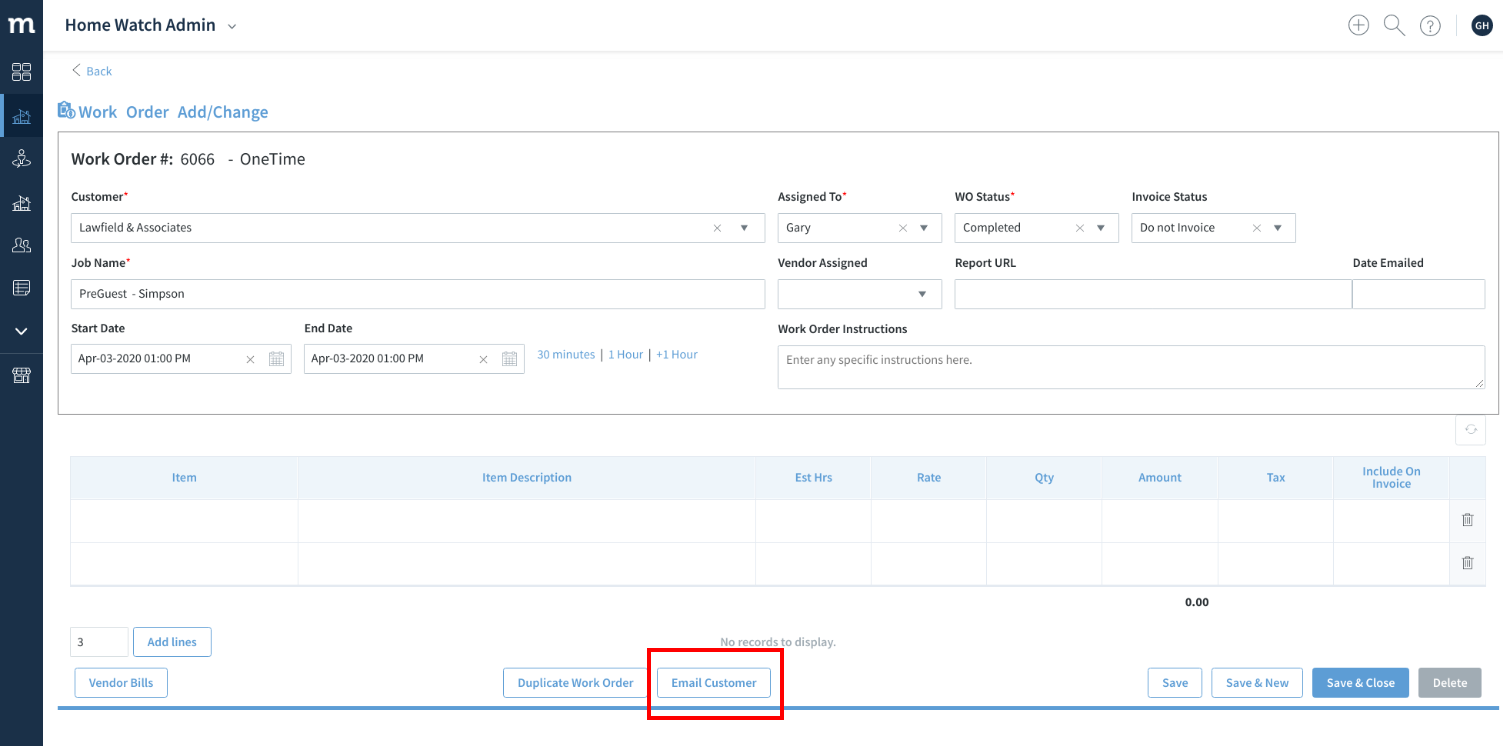
To send the email click the button at the bottom of the screen, if you are on a OneTime Work Order (the button will not appear on Series or Occurrences).
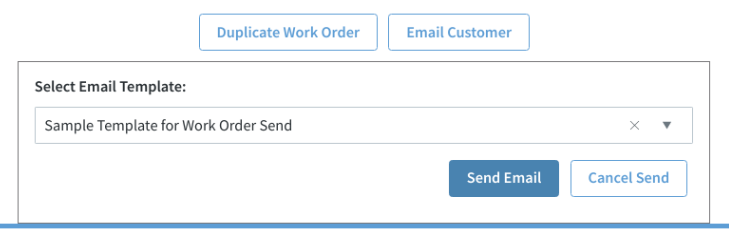
You can then select the email template you wish to use, and the final email will be presented to you to send. The email will be logged in the Activities file for the client after sending.
When developing your email template, you can use any fields from the Entity, Activity, and User tables. Suggested fields to use include:
- Company.CompanyName - Your company name
- Contacts.FirstName - The client’s first name
- Contacts.FullName - The client’s full name
- Entity.ShipAddressAddr1 - The property’s street address
- Activity.Comments - The Job Name / Comments field
- Activity.DueDateStart - The Work Order start date and time
- Activity.AssignedTo - The person you have assigned the Work Order to
- Users.EmailSignature - The sender’s email signature as defined in Method
- Activity.WorkOrderInstructions - The Contents of the Work Order Instructions field
Any fields on the screen can be added to an email template — if you need the particular field name just ask us and we’ll get it to you!