Optimizing Your Route by Shortest Distance
Route optimization is built into the product (rather than using an external website) and the calculated route sequence is now saved and usable by you and your Field Technicians.
To calculate an optimized route, start on the Work Order List screen and select all of the Work Orders for a single technician on a single day. The day can be any day in the future but all Work Orders selected must be on the same day and for the same technician. Optimizing routes that span days and technicians doesn’t make sense, so the system will give you a message if you attempt to do this and will not process the route.
Once you have selected the Work Orders to optimize select the “Actions on Selected” button and click on Calculate Best Route.
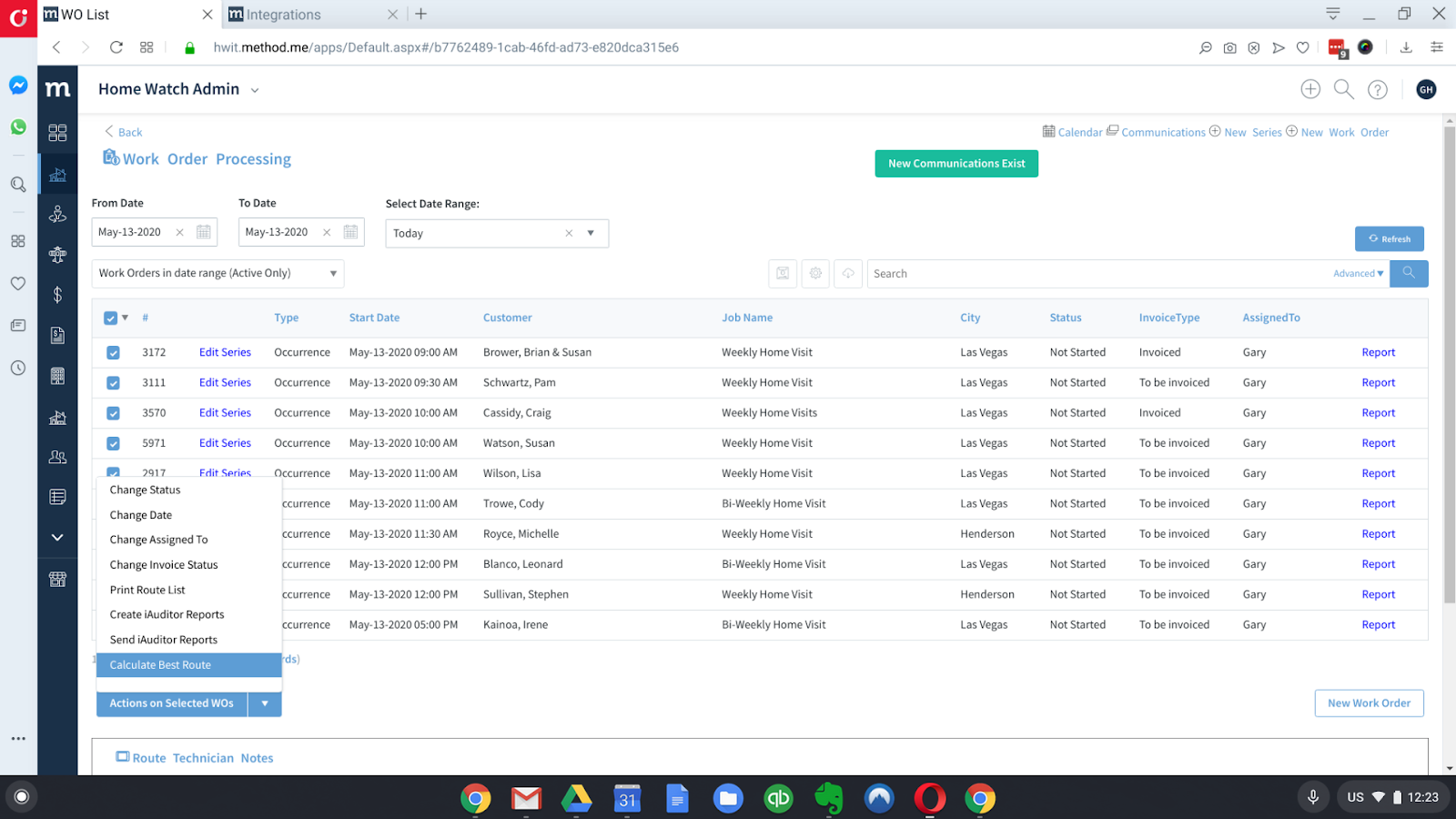
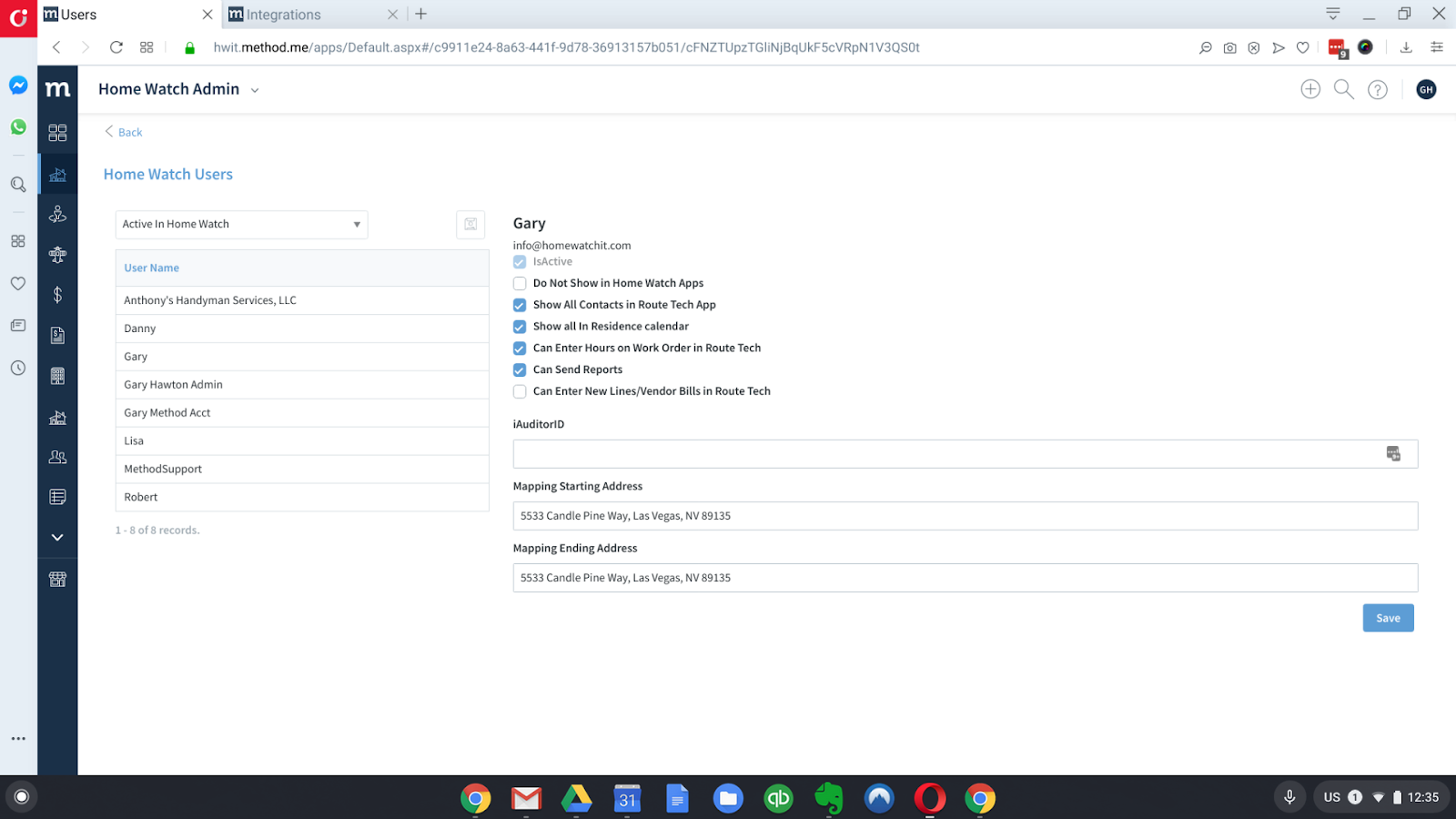
The system will verify the selection and then automatically calculate the route. If you have defined Starting and Ending addresses for this technician, in the User Setup, those addresses will be added to the calculation. This is handy to calculate the route based on where your technician lives, or from where he will start/end his route. To get to the User Screen go to Preferences and then select Users at the top. You’ll see the Starting/Ending addresses there and can update them:
After selecting Calculate Best Route on the Work Order List, the system will validate and perform the calculation and open a screen like the following, showing the route and also showing the updated order of the Work Orders in order to take advantage of the calculated route:
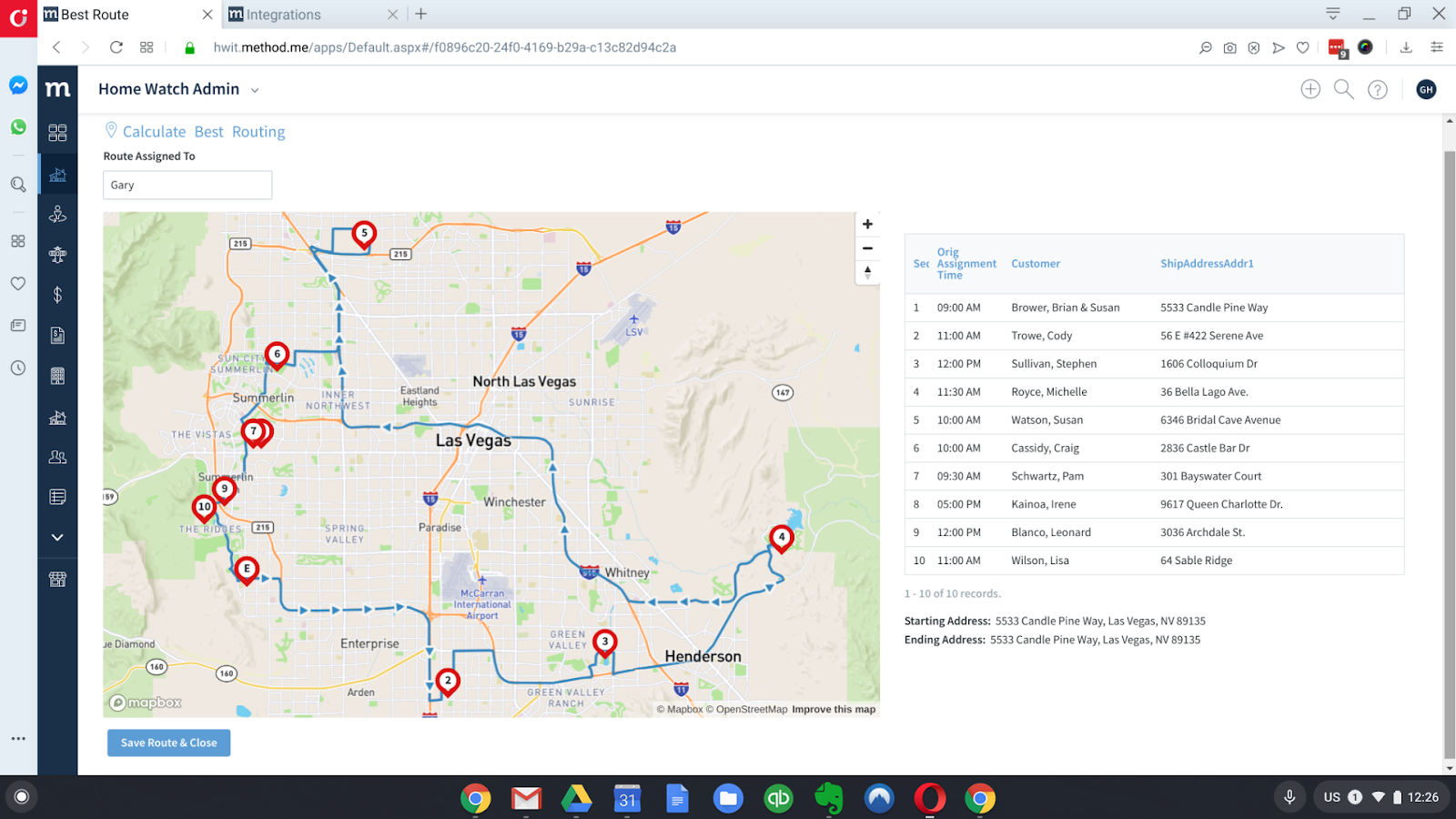
The sequence that is calculated and displayed on the right side will be saved and usable from the Work Order List and the Route Technician App.
There is an option to update all Work Order start times so that the Work Orders will be in sequence based upon the route calculation. However, you do dot need to modify the times in order to view the Work Orders in sorted sequence as discussed below. If you do with to update the start times click the button and the system will ask for starting time and duration for each work order and quickly reassign new start times to each one.
In the Work Order List, all of the standard views will continue to be sorted by time, rather than the optimized route. This is best used for planning and viewing all Work Order by the Admin. However, if you wish to view the route as it was optimized, and you do not update the times to match the calculated route, there is now an additional view allowing you to do so: “Route Order for a Date”. Note that if you select multiple dates this view will be a bit nonsensical as you cannot route over multiple dates. If you do have multiple technicians on that date this view will be sorted by each technician’s routes, giving you a good overview of your entire team’s workload. If a technician has not been optimized, their Work Orders will appear in normal date/time order.
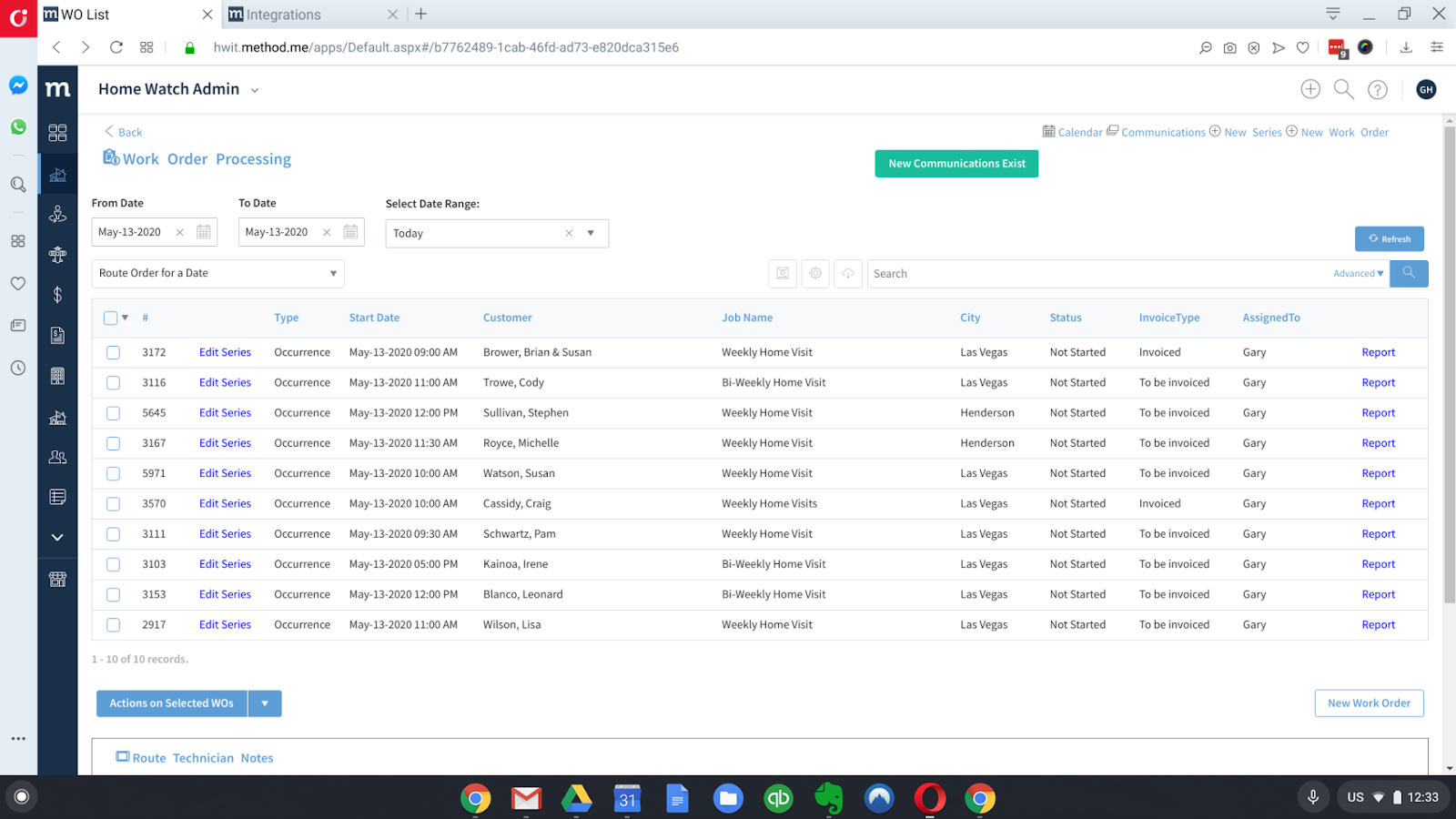
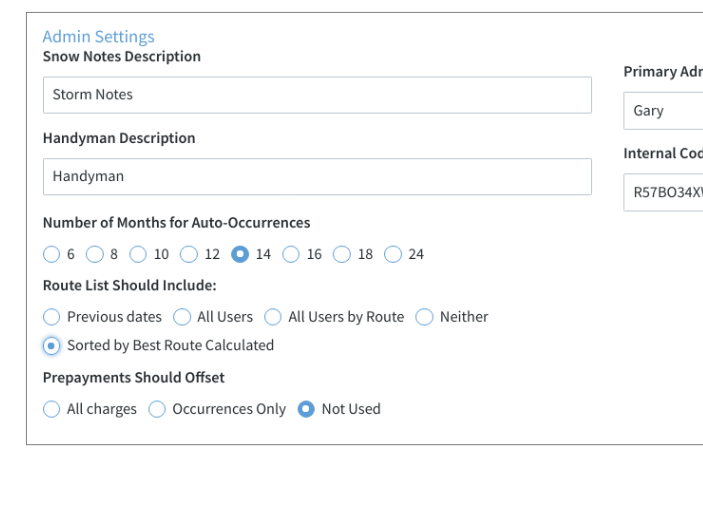
In order for the Work Orders to display in the Route Technician App, you will need to choose the proper setting in Preferences. Note that this will display only the current, optimized route for a particular date. This view will not allow for previous days, all users, etc. due to the definition of an optimized route.
To set this preference, go to the Preference screen and select “Sorted by Best Route Calculated”:
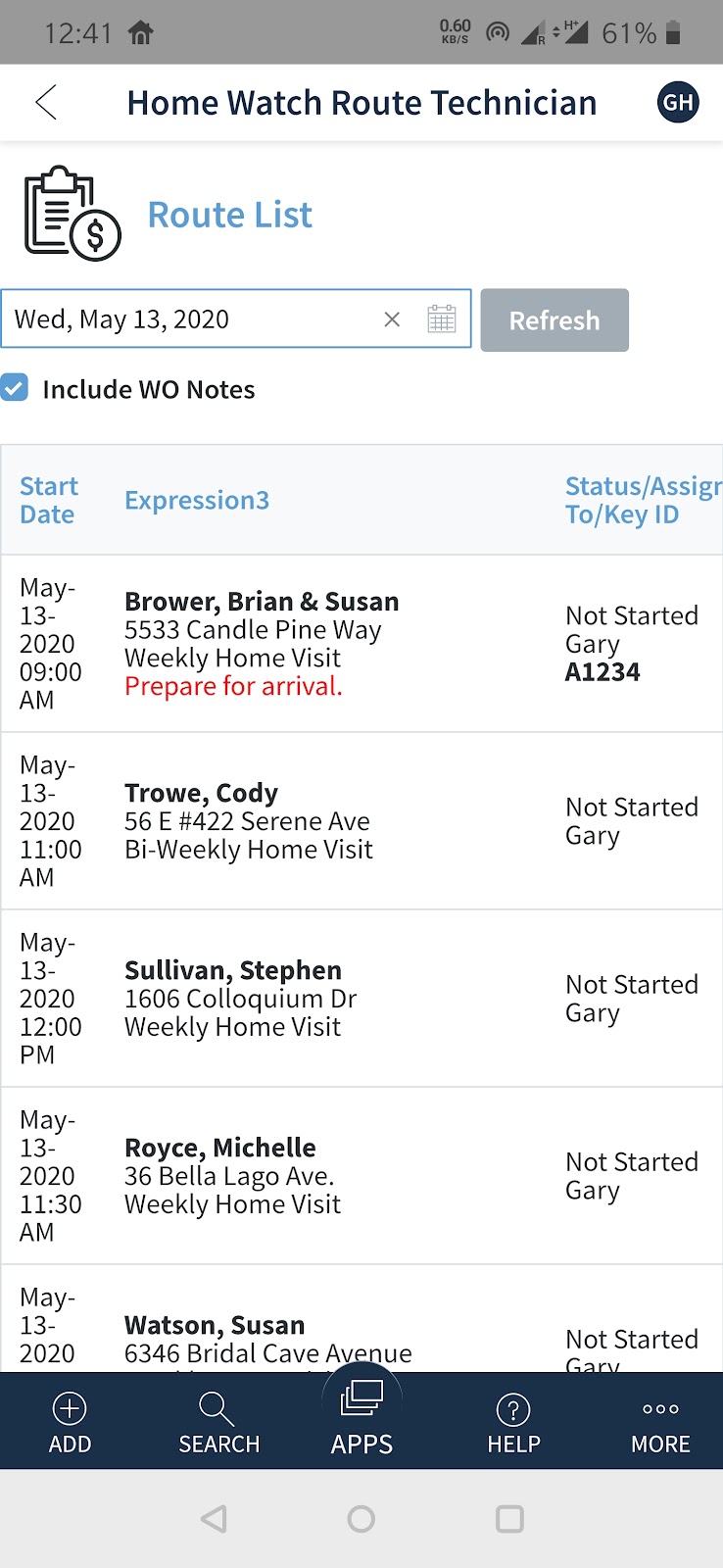
Now, when your Route Technician opens their route list in the app, it will appear in optimized sequence: